Lark Suite is ByteDance’s all-in-one business suite — email, chat, docs, sheets, and a base (Bitable) — with a generous free tier that competes with Google Workspace and Microsoft 365. It also ships a comprehensive REST API that you can call from any server-side stack. This guide walks through setting up a custom Lark app, authenticating with a tenant access token, and calling the Bitable API from a Hono worker running on Cloudflare.
Prerequisites#
Before we begin, make sure you have:
- Node.js installed on your machine
Setting Up Your LarkSuite#
Before you can use LarkSuite API, you need to have Lark account. You can create the account using my referral here https://open.larksuite.com Once you have Lark account, then navigate to https://open.larksuite.com/ to create the custom app. Here a brief steps on how to do that:
- Navigate to https://open.larksuite.com/
- Click create App button
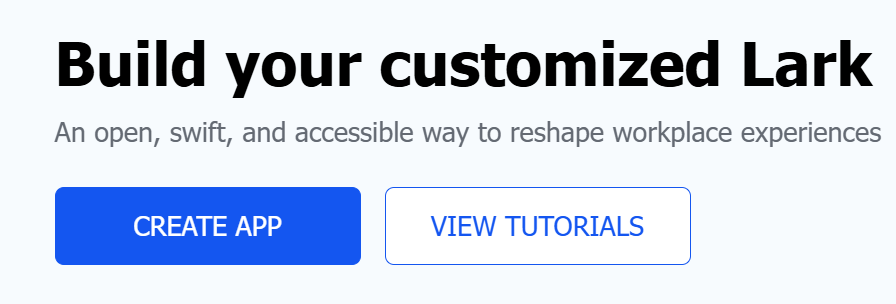
- Click Create Custom App button

- fill out the app detail
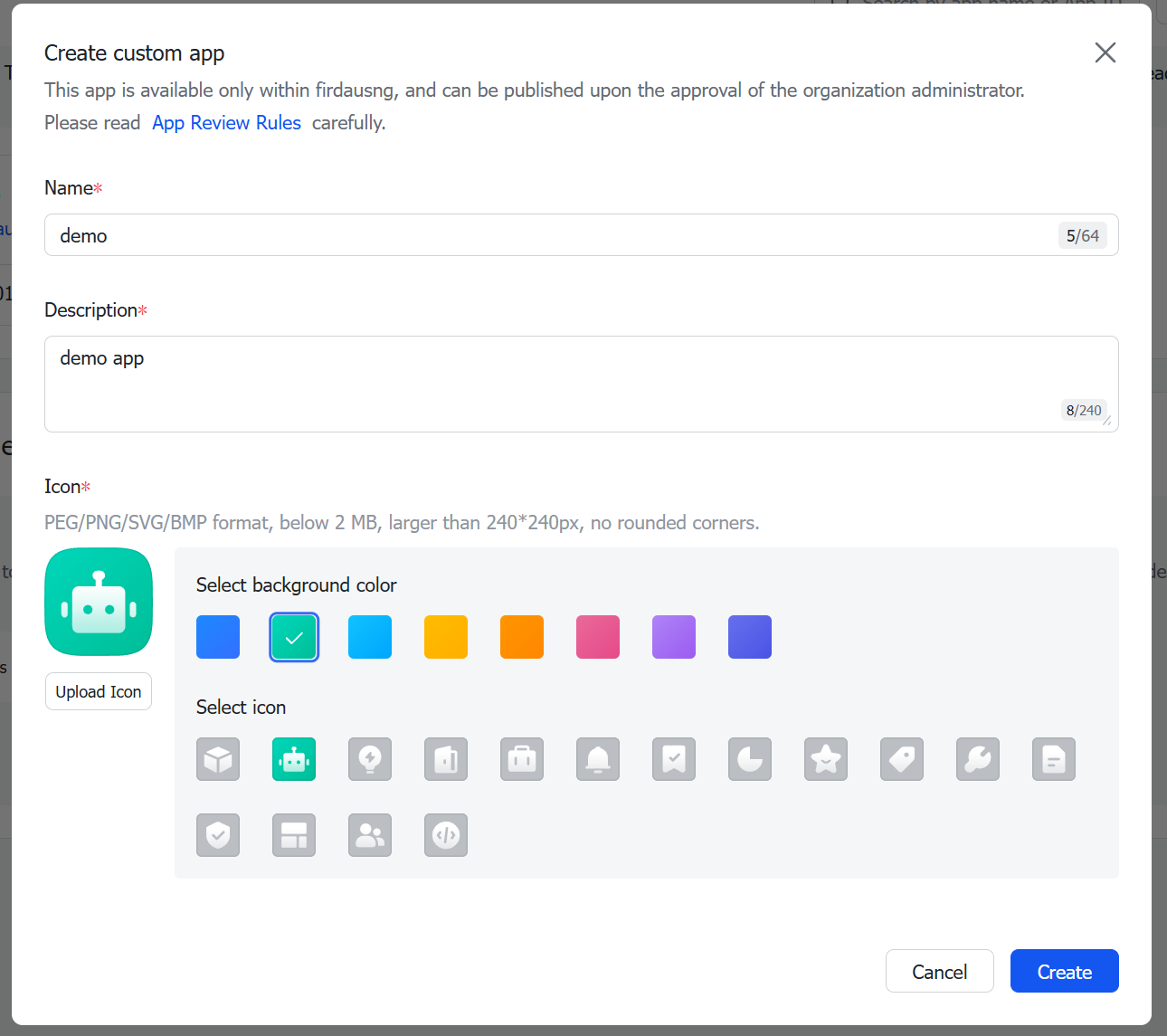 and click
 confirm - Your app should be ready now
Test using Lark API Explorer#
In order for you to test Lark API, you can go to Lark API Explorer. Here you can test all API that LarkSuite provide.
Each of the APIs have scope that you need to give before you can execute the API.
You can choose between tenant_access_token or user_access_token to choose for each APi. for some APIs, you can only used user_access_token due to the data requested such as Obtain login user information.
Manipulate Lark Sheet#
One of interesting feature of Lark is Sheets.
This feature similar with Google Sheet or Microsoft Excel. Lark do have API that you can use such as Create Spreadsheet API.
In order to use this API, you need to create the sheet in Lark, and then you need to make sure that the sheet that you have created can be accessed by the app.
This can be done by adding the template to your Lark organization drive
Once do that, you need add the App that you created above to the sheet. The screenshot below show you where to do that. 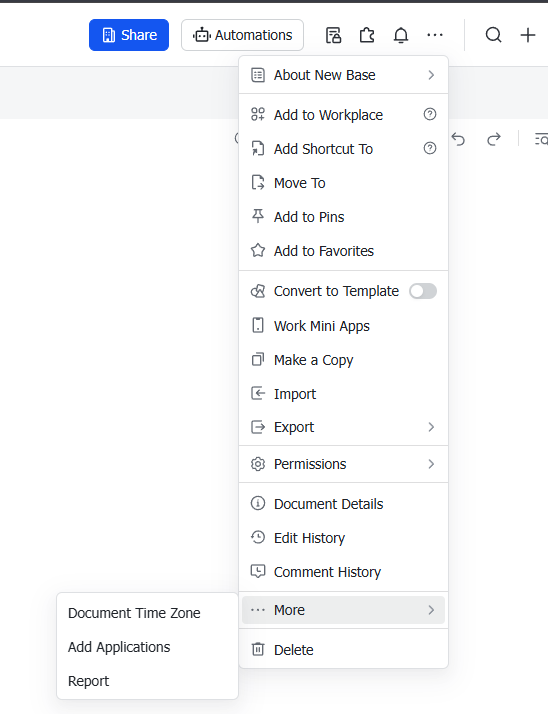 This will enable your app to access that sheet using api now. To test this you can go again to Lark API Explorer and
try to run any sheet API.
This will enable your app to access that sheet using api now. To test this you can go again to Lark API Explorer and
try to run any sheet API.
Simple Hono App using LarkSuite API#
If you have not yet create hono app, you can follow this guide to that. I am going to use cloudflare worker template for this.
I’m also going to use ofetch package in this guide. this can install using below command
pnpm add ofetchThen we can create a simple Lark Client as below
// src/lark-client.ts
import { ofetch } from "ofetch";

export default class LarkClient{
    public tenantAccessToken: string|undefined;
    constructor(private config: LarkClientConfig) {
    }

    async getTenantToken(){
        // https://open.larksuite.com/open-apis/auth/v3/tenant_access_token/internal
        const url = `${this.config.domain}/open-apis/auth/v3/tenant_access_token/internal`;
        const payload = {
            app_id: this.config.appId,
            app_secret: this.config.appSecret,
        };

        const response = await ofetch<Token>(url, {
            method: "POST",
            headers: {
                "Content-Type": "application/json",
            },
            body: payload,
        })
            .catch((err) => {
                console.error("Fetching tenant_access_token failed:", (err as Error).message);
            });

        if(!response){
            return;
        }
        this.tenantAccessToken = response.tenant_access_token
        return response;
    }


    async getTable(appToken: string, pageSize = 20){
        //open-apis/bitable/v1/apps/YZYab6ZzyaXFossG7bllkcxlgjd/tables?page_size=20
        const url = `${this.config.domain}/open-apis/bitable/v1/apps/${appToken}/tables?page_size=${pageSize}`;

        const response = await ofetch<LarkResult<Pagination<Table>>>(url, {
            method: "GET",
            headers: {
                "Content-Type": "application/json",
                "Authorization": `Bearer ${this.tenantAccessToken}`
            },
        })
            .catch((err) => {
                console.error("Fetching table failed:", (err as Error).message);
            });

        if(!response){
            return;
        }

        return response; // Handle or return the response as needed
    }
}

export type LarkClientConfig = {
    appId: string,
    appSecret: string
    domain: string
}

type Token = {
    "code": number,
    "expire": number,
    "msg": string,
    "tenant_access_token": string
}

export type LarkResult<T> = {
    code: number
    msg: string
    data: T
}

export type Pagination<T> = {
    has_more: boolean
    page_token: string
    total: number
    items: Array<T>
}

export type Table = {
    table_id: string
    revision: number
    name: string
}
In the code above, I have LarkClient class that will handle authentication and also a wrapper for Lark API.
We are also going to use Hono middleware to give instance of LarkClient to all Hono request.
Next is we going to add type for the Hono App
// src/types.d.ts
import {Hono} from "hono";
import LarkClient from "./lark-client";

export type App = {
    Bindings: Env,
    Variables: {
        larkClient: LarkClient
    }
}

export type AppOpenAPi = Hono<App>;
we are putting larkClient under Variables so that each Hono request can have instance of LarkClient
Now we need to set Hono App to use this client
// src/middlewares/lark.ts
import { createMiddleware } from 'hono/factory'
import LarkClient from "../lark-client";
import {App} from "../types";

export const lark = createMiddleware<App>(async (c, next) => {
    const client = new LarkClient({
        domain: 'https://open.larksuite.com',
        appSecret: c.env.LARK_APP_SECRET,
        appId: c.env.LARK_APP_ID
    })
    c.set('larkClient', client)

    const LARK_TENANT_KEY = 'LARK_TENANT_KEY';
    const tenantKey = await c.env.MY_KV_NAMESPACE.get(LARK_TENANT_KEY);
    if(!tenantKey){
        const token = await client.getTenantToken();
        if(token?.tenant_access_token){
            const expire = (token.expire * 1000) - (3 * 60 * 1000);
            console.log(`storing token: ${JSON.stringify(token)} with expiring ${expire}`)
            await c.env.MY_KV_NAMESPACE.put(LARK_TENANT_KEY, token?.tenant_access_token, {
                expirationTtl: expire
            })
        }
    }else{
        console.log(`use tenantkey from cache`)
        client.tenantAccessToken = tenantKey;
    }

    await next()
})
This middleware basically set LarkClient instance.
Here we’re also utilizing Cloudflare KV to store tenant key so that we do not need to request tenant key for every Hono Request.
You need to update your wrangler.toml file and .dev.vars to store all the necessary above
- LARK_APP_SECRET (.dev.vars)
- LARK_APP_ID (wrangler.toml)
- MY_KV_NAMESPACE (wrangler.toml)
All these setup will help us to integrate Lark API in Hono app. Here is the basic Hono App utilizing all the code above
import { Hono } from 'hono'
import {App} from "./types";
import {lark} from "./middlewares/lark";
import {requestId} from "hono/request-id";
import {logger} from "hono/logger";

const app = new Hono<App>()

app.use(requestId());
app.use(logger());
app.use(lark);

app.get('/:appToken', async (c) => {
  const appToken= c.req.param('appToken')
  const response = await c.var.larkClient.getTable(appToken)
  if(!response){
    return c.json({
      type: "https://example.com/probs/token-error",
      title: "Validation Error",
      instance: c.req.path,
      traceId: c.var.requestId
    })
  }
  return c.json(response?.data)
})

app.notFound((c) => {
  const json = {
    type: "https://example.com/probs/not-found",
    title: "Path not found",
    detail: "You requested path is not exist",
    instance: c.req.path,
    traceId: c.var.requestId
  };
  return c.json(json, 404)
})


export default app
when you run the Hono App, you can send the request with appToken. This appToken should be available on your sheet.
You can get more information from this doc List Table You also can get the appToken from the url when you view the Lark Sheet, for example from https://abc.sg.larksuite.com/base/asalskakamkda
Wrap-up#
The pattern generalises: Lark’s tenant access token is short-lived and app-scoped, so caching it in KV (keyed by app ID, TTL tuned to a few minutes below the reported expire) is the natural shape for any Cloudflare-based Lark integration. Hono is used here but the middleware is a thin wrapper — the same approach drops into any web framework that supports per-request context.
Additional resources#
Related posts
- Setting up D1 Database with Drizzle in a Hono Cloudflare Worker AppThis guide covers configuring a D1 database using Drizzle in a Hono app deployed using Cloudflare Workers.cloudflare workerscloudflare D1honodrizzle
- Migrate a Cloudflare D1 database to another accountExporting a D1 database with wrangler and replaying it on a different Cloudflare account — plus the foreign-key ordering error that always trips people up on first try.cloudflare D1cloudflare workers
- Integrate Better Auth and Google One Tap with Hono and SvelteKitA walkthrough of wiring Better Auth with Google One Tap into a SvelteKit app, using Hono for the API layer and Cloudflare D1 + Workers for the backend.better authgoogle one taphonosveltekitdrizzlecloudflare workerscloudflare D1